Introduction
In modern product design and team collaboration, Figma has attracted wide attention for being browser-based, supporting real-time multi-user collaboration, and offering a rich plugin ecosystem. Whether you are a UI designer, product manager, or front-end engineer, understanding Figma’s website and platform features can help improve collaboration efficiency and output quality. This article will introduce the Figma website comprehensively from features, scenarios, getting-started guidance, and practical tips.
Main Body
What is the Figma website?
Figma is a design tool that runs in the browser and as a desktop client. The Figma website (i.e., figma.com) is the gateway to accessing projects, team spaces, community resources, and the plugin marketplace. It centralizes design files, team collaboration, prototype previews, and resource sharing on an accessible online platform, emphasizing “multi-user simultaneous editing” and “traceable versioning.”
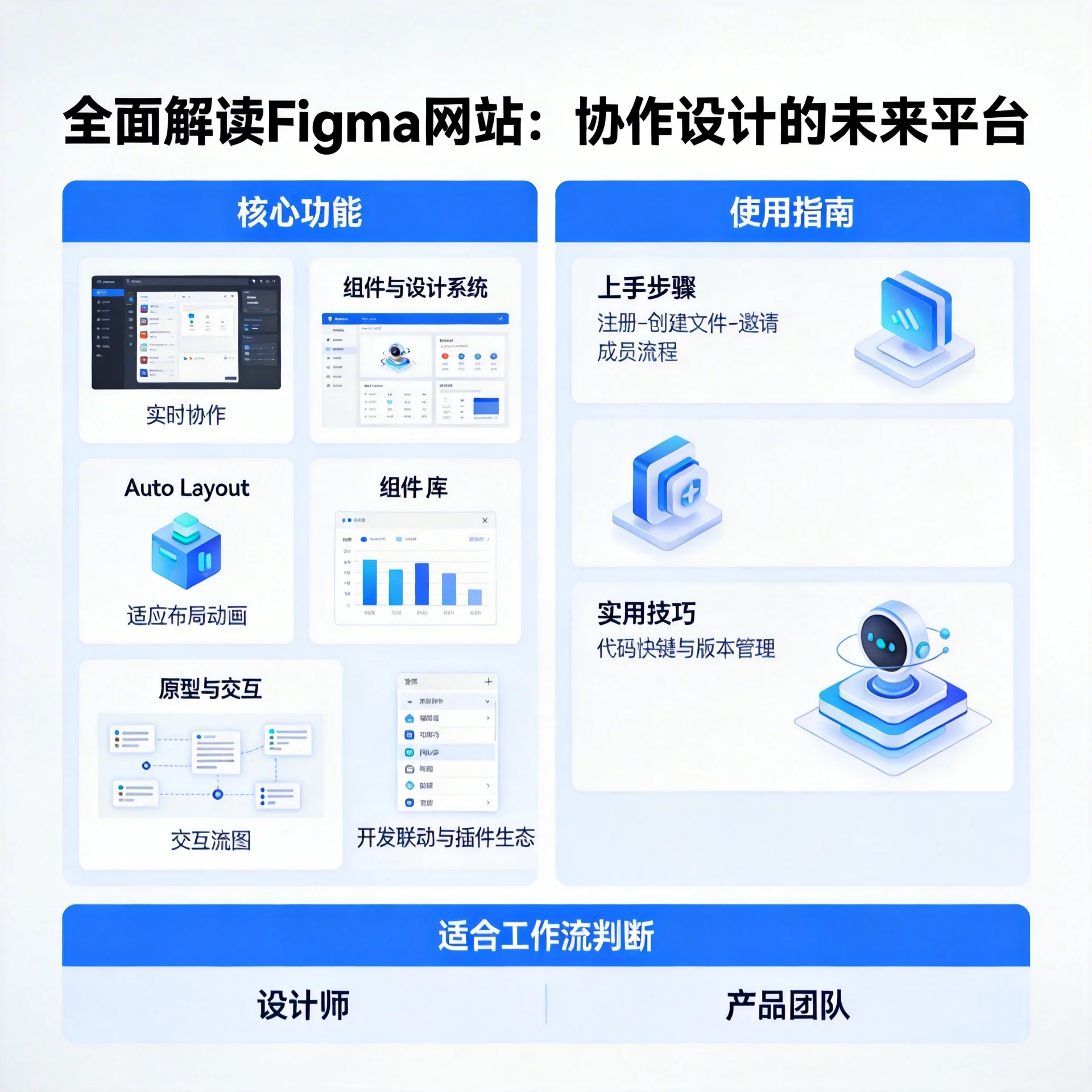
Overview of Core Features
- Real-time collaboration: Multiple people can edit, comment, and view action history in the same file simultaneously, similar to the Google Docs experience, which facilitates instant communication across cross-functional teams.
- Vector drawing and layout: Supports vector editing, Boolean operations, constraints, and Auto Layout, used to build responsive components and complex layouts.
- Components and design systems: Supports creating reusable components, variants, and styles (colors, text, effects), which helps maintain design consistency.
- Prototyping and interactions: Allows adding interactions, transitions, and triggers between frames to quickly generate clickable prototypes for user testing or presentations.
- Developer handoff: Provides an Inspect panel to view CSS/SVG code snippets, measurements, and asset exports, reducing the communication cost from design to implementation.
- Plugins and community: A rich plugin marketplace and community files (templates, UI kits) can extend functionality and speed up workflows.
Typical Use Cases
- Remote team collaboration: Designers and product managers can participate in reviews simultaneously, making design discussions more efficient.
- Design system management: Centrally maintain component libraries and styles to ensure visual consistency across multiple product lines.
- Rapid prototype validation: Product prototypes can be demonstrated directly in the browser and feedback collected.
- Design delivery: Developers can get styles and assets directly through the Inspect panel, reducing back-and-forth communication.
Getting Started (Quick 5 Steps)
- Sign up and create a team: Visit the Figma website and create a team space using your email or a third-party account.
- Create a new file and get familiar with the canvas: Learn about frames, the layers panel, and the toolbar.
- Use Auto Layout: Use Auto Layout to make responsive components, and try using Variants to manage different states.
- Build prototypes and share: Add interactions and generate a link, inviting colleagues to preview or comment.
- Explore the community and plugins: Install commonly used plugins (such as icon libraries, content fill, design spec export) to improve efficiency.
Example: Exporting simple button CSS from Figma:
.button {
  background: #1E90FF;
  color: #fff;
  padding: 12px 20px;
  border-radius: 6px;
}
Practical Tips and Best Practices
- Design system first: Define colors, text styles, and basic components first, then build pages. This can significantly reduce maintenance costs later.
- Naming and grouping: Keep layer and page naming consistent to make it easy for team members to find and reuse elements.
- Use version history: Save frequently and record milestones to facilitate rollbacks and audit design changes.
- Comments and annotations: Use the comment feature to centralize discussions and avoid feedback scattered across third-party tools.
- Plugin strategy: The team should standardize a recommended set of plugins to avoid inconsistencies from individual installations.
Frequently Asked Questions
-
Is Figma only suitable for web design? Although Figma is very popular in interface design, it is also commonly used for mobile design, icon design, UI animation prototyping, and even some secondary visual creation.
-
How is offline work supported? Figma provides a desktop client and supports basic offline editing, but the full experience relies on cloud-based collaboration and synchronization.
Summary
The Figma website closely integrates design, collaboration, and delivery, emphasizing real-time collaboration and componentized management. It is a powerful tool for modern design teams, especially remote or cross-functional teams. By building a reasonable design system, standardizing team workflows, and leveraging the plugin ecosystem, teams can significantly improve efficiency from concept to launch. Whether you are a newcomer to design or a product team looking to optimize collaboration workflows, Figma is worth trying.
If you want to start trying it out, it's recommended to begin with a small-scale project: create basic components, establish shared styles, and invite one or two colleagues to collaborate, using a real project to test whether it fits your team's workflow.